How to Install and Manage Apps on Your Samsung TV
How to Install and Manage Apps on Your Samsung Smart TV
To install and manage apps on your Samsung Smart TV, follow the steps below to add, organize, and troubleshoot apps. Issues like missing apps, slow performance, or unresponsive apps can often be resolved with simple adjustments.
1. How to Install Apps on Your Samsung Smart TV
To install apps on your Samsung Smart TV, follow these steps:
- Press the Home button on your remote control.
- Navigate to the Apps section.
- Select the Samsung App Store and browse or search for the app you want to install.
- Select the app and choose Install to begin the download.
2. How to Move Apps on the Home Screen
To rearrange apps on your Samsung Smart TV's Home Screen, follow these steps:
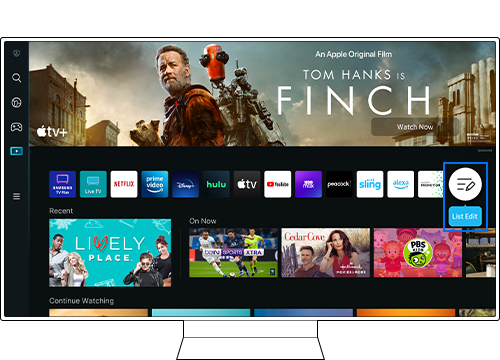
- From the Apps list, scroll to the end and select List Edit.
- Navigate to the app you want to move, then press the down directional button on your remote.
- From the options menu, select Move.
- Use the left or right directional buttons to move the app to your desired location, then press Select.
- You can also long-press the Select button while focusing on the app to move it directly.
3. How to Remove Apps from the Home Screen
To remove apps from your Samsung Smart TV's Home Screen, follow these steps:
- Select List Edit from the end of the Apps menu.
- Place the focus on the app you want to remove, then press the down directional button on your remote.
- From the options menu, select Remove.
- The selected app will be removed from the Home Screen list.
- You can also long-press the Select button while focusing on the app to remove it directly.
4. How to Delete or Lock Apps
To delete or lock apps on your Samsung Smart TV, follow these steps:
- Select Settings from the Apps screen.
- Select the app you want to Delete or Lock/Unlock.
- If you select Delete, the app will be permanently removed from your TV.
- If you select Lock or Unlock, the app will be secured with a PIN. The default PIN is 0000.
- Deleting an app removes it from the Home Screen and all associated data.
- Pre-installed apps cannot be deleted, so the Delete option may be disabled.
- To set a custom PIN, go to Menu > Settings > All Settings > General & Privacy > System Manager > Change PIN.
5. Why the Apps List Doesn't Appear
If the Apps List doesn't appear on your Samsung Smart TV, follow these steps:
- Press the Apps tile on the Home Screen.
- A pop-up will appear asking you to agree to the Terms and Conditions.
- After agreeing, the Apps List will be displayed.
6. How to Troubleshoot Slow or Unresponsive Apps
If a TV app becomes slow or unresponsive, try resetting Smart Hub and reinstalling the app:
- Press the Home button on your remote control, then select Menu.
- Navigate to Settings > Support > Device Care > Self Diagnosis > Reset Smart Hub.
- Enter your PIN. The default PIN is 0000.
- Resetting Smart Hub will reset all Smart Hub settings, downloaded apps, and accounts stored on your TV.
7. Additional Things to Check
- Ensure your Samsung Smart TV has the latest software updates, as they may resolve app-related issues.
- Check your internet connection, as poor connectivity can cause apps to load slowly or fail to launch.
- Restart your TV if apps continue to freeze or crash unexpectedly.
8. Supported Samsung Smart TV Models
These steps apply to most Samsung Smart TV models, including:
- Galaxy S24, S25, S26 series
- Galaxy Z Fold and Galaxy Z Flip series
- Galaxy A series
- Other Samsung Smart TV models with Tizen OS
Related Samsung Support Topics

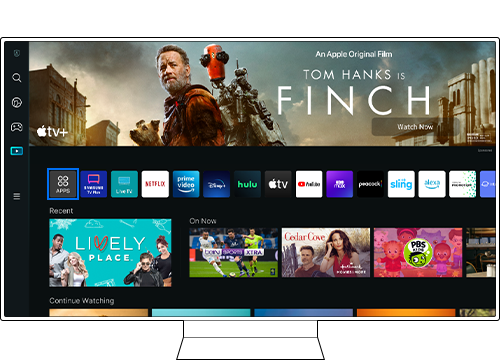
Step 1. Press the Home button on your Smart Remote, then navigate to Apps.


Step 2. Select an app to install, press the Select button, then move to the detailed information screen. You can also search by app name.
Thank you for your feedback!
Please answer all questions.