How to Pair Your Galaxy Fit3 with Your Phone
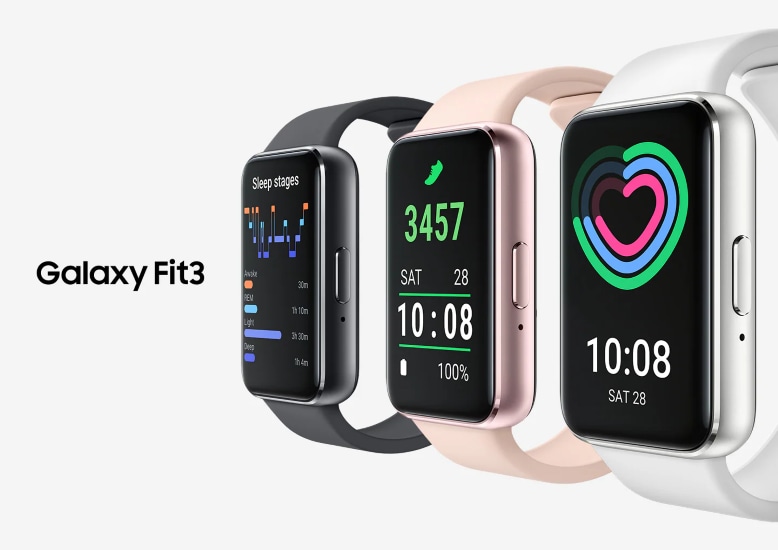
How to Pair Your Samsung Galaxy Fit3 with Your Phone
Pairing your Samsung Galaxy Fit3 with your phone is a straightforward process that enables you to sync fitness data, receive notifications, and access advanced health tracking features. Follow these steps to ensure a smooth connection and avoid common pairing issues.
1. How to Pair Your Samsung Galaxy Fit3 with Your Phone
To pair your Samsung Galaxy Fit3 with your phone, you'll need the Galaxy Wearable app. Here's how to get started:
- Download and install the Galaxy Wearable app on your phone. Available on the Galaxy Store or Google Play Store.
- Ensure your phone supports Google Mobile Services and is compatible with the Galaxy Fit3.
- Turn on your Galaxy Fit3 and enable Bluetooth on your phone.
- Open the Galaxy Wearable app and follow the on-screen instructions to connect your Fit3.
- Complete the setup process, which includes learning about basic controls and syncing your data.
2. Why Pairing Might Fail or Be Delayed
- Your phone or Fit3 is not within Bluetooth range.
- The Galaxy Wearable app is outdated or not installed.
- Your phone is already connected to another device.
- Your phone does not support Google Mobile Services.
- The Fit3's battery is critically low during the pairing process.
3. Additional Things to Check
Before attempting to pair your Galaxy Fit3, ensure the following:
- Your phone's Bluetooth is enabled and visible.
- The Galaxy Wearable app is updated to the latest version.
- Your phone meets the compatibility requirements for the Galaxy Fit3.
- You have a stable internet connection for app installation and updates.
4. Supported Samsung Galaxy Devices
The Galaxy Fit3 is compatible with most Samsung Galaxy smartphones, including the Galaxy S24, Galaxy S25, Galaxy Z Fold, Galaxy Z Flip, and Galaxy A series. Ensure your device supports Google Mobile Services for seamless connectivity.
5. What Happens When You Connect to a New Phone?
When connecting your Galaxy Fit3 to a new phone, all personal data on the Fit3 will be reset. To preserve your data:
- Tap "Back up data" when prompted during the connection process.
- Restore your data when setting up the Fit3 on the new phone.
6. Related Samsung Support Topics
Thank you for your feedback!
Please answer all questions.